For a small Minecraft group, a few Discord notifications are often enough: something failed, someone needs to take a look, and afterwards it works again. With mcfreehost, you connect a webhook to a specific channel and enable suitable event rules. The webhook does not respond to commands and gives friends no server permissions.
This guide sets up a clear notification channel instead of sending all events to your main chat. Check the scope of your server while doing so: general status and resource alerts are not automatically part of the Free plan. A connected channel or a successful test message does not unlock them.
Checked: October 7, 2026. The Free scope that was checked includes backups and one collaborator, among other things, but no general alerts approval. Available events and additional approvals depend on your server and the panel.
First Decide Which Message Actually Helps Someone
Choose a channel in which your group wants to read server notifications, for example #minecraft-status. If only the owner responds to technical errors, a restricted team channel makes more sense than the general chat. Anyone who can read the channel also sees the notifications posted there.
Do not enable every visible event at once. Start with a small selection and review it after an actual game night. A notification is helpful if someone knows what to do next.
| Notification | Sensible handling |
|---|---|
| Start | The owner checks the startup error; friends do not try further restarts at the same time |
| Backup | The owner checks the backup before the world or software is changed |
| Crash | Use only if this alert function is enabled for the server; check the diagnosis and the latest save |
| Load | If monitoring is available, look at the specific value; not a blanket purchase alarm |
| Update | Agree on a time with the group; do not update blindly during game night |
| Record | Enable only if your group wants such notifications |
These are recommendations for your selection, not a promise that every event type is triggered on every Free server. Distinguish startup error and memory diagnostics from general status and resource alerts: certain startup error or memory diagnostics may be offered independently of the missing general alerts approval. That, too, is not a promise for every server; what counts are the events actually offered in the panel. TPS, the number of game ticks per second, applies to the Java Minecraft path. A rule with the same name is not a general Bedrock monitor.
For waking up the server and limited control permissions, there is the Discord bot for friends. A webhook does not replace that route. Sleeping is also not a crash; the states are explained in Running and waking up a Free server.
Create the Right Webhook in Discord
In the Discord server, you need the Manage Webhooks permission and access to the intended text channel. If you lack the permission, have the responsible administrator create the webhook. Do not give the bot blanket administrator rights for this; a simple incoming webhook needs no bot invitation.
- On the intended channel, open the gear icon for Edit Channel.
- Select Integrations, then Create Webhook or New Webhook.
- Give it an understandable name such as
Minecraft-Notificationsand check the target channel. - Use Copy Webhook URL to copy the full address.

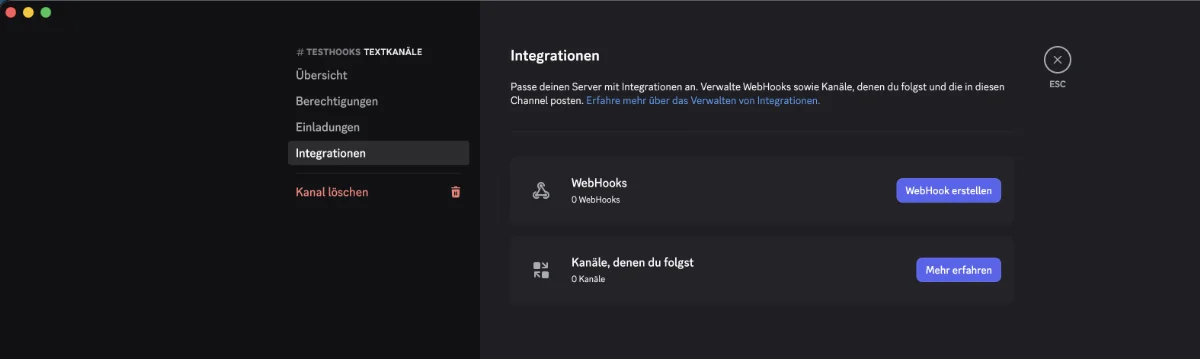
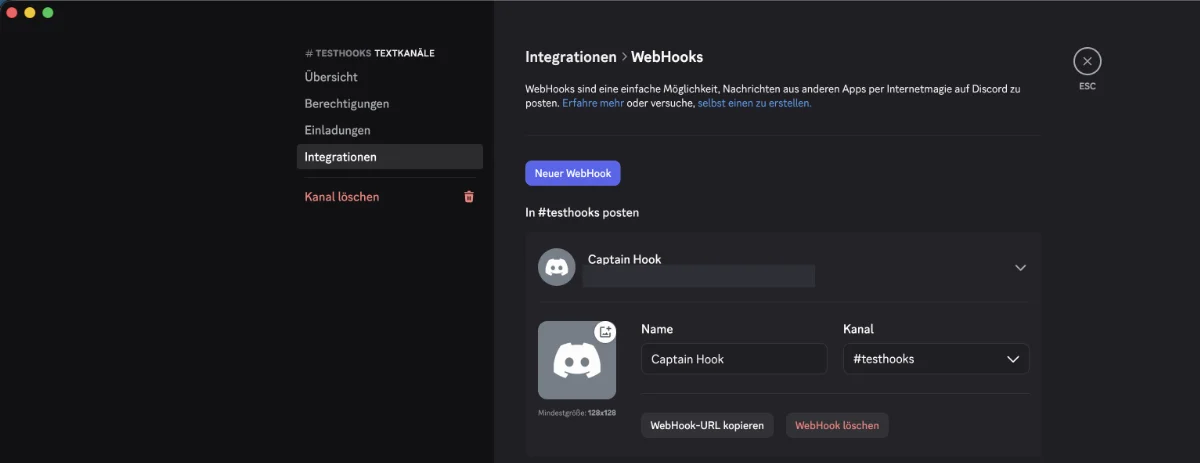
The available screenshots show the German Discord interface. Labels may change with a Discord update; the official webhook help describes the same route via Integrations.
Treat the entire URL like a password. Its secret token allows sending to the channel. Do not share the URL with fellow players or in screenshots, public chat messages or support texts. The Discord webhooks documentation describes sending via this token without additional login.
Connect in the Right MCF Server and Test Once
Open your server and go to Discord & Notifications. Under Connect Channels you will find the Discord card. Paste the full URL into Discord Webhook URL and select Connect Discord. Check the server name beforehand; if you have created two Free servers, the wrong world could otherwise send the notifications.
After connecting, the card shows a shortened address with the secret part hidden. To change the target, remove the connection and reconnect.
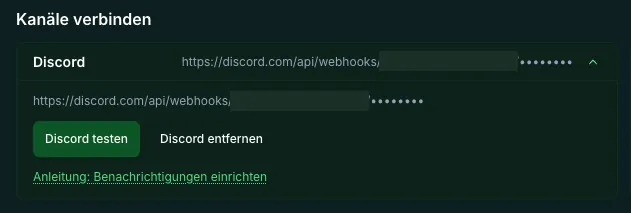
Select Test Discord once and check the intended channel as well as Recent Deliveries. The test message is scheduled. A success message in the panel initially means that the test was accepted; it does not yet prove visible receipt by all friends.
The test addresses the channel directly. It can work even though no normal event is enabled yet. It proves neither a resource alert approval nor suitable quiet hours. Repeated clicks do not speed it up; with the test throttle, the panel shows the remaining wait time.
Enable Event Rules Sparingly
Under Set Events, select Discord as the target for the intended events and confirm Apply Event Rules. Channels that are not connected cannot receive notifications. Check the saved state after applying.
The Minimum Severity filters notifications below the selected level. If you only allow critical, a mere warning will not be delivered. Choose the value to suit the event instead of fixing missing messages with more and more rules.
The Repeat Interval reduces recurring notifications about the same problem. An example for a calm small group is an interval of five minutes. That is your choice, not a general Discord limit. Discord uses its own changeable sending limits, which are described in the rate limit documentation.
Also decide whether a Recovery should be reported. A short message that the problem has been resolved can spare repeated questions in the main chat. Still determine the server diagnosis in the panel; a notification does not start a repair process.
Check Quiet Hours with Recovery and Exceptions
A time window such as 22:00 to 07:00 can postpone normal open notifications. Check the time zone of your customer account and the settings shown in the panel. UTC in the message timestamp and your local time can differ.
Quiet hours are not a complete mute: an enabled exception for critical notifications can bypass them. Recovery messages also have their own delivery path. If you really want no notifications at night, check these settings and additionally the Discord notification settings of your device.
A resolved problem can replace an open notification that is still being held back. So expect neither every intermediate stage nor a guaranteed morning summary of all events. Check Recent Deliveries together with the saved rules. The history shows simplified delivery labels and does not explain every filter reason individually.
If the Test Arrives but Normal Notifications Are Missing
First check the saved event rule, the selected channel and the minimum severity. Next comes the actual approval: general status and resource alerts may be missing on Free without a suitable additional scope, even though the direct channel test works.
| Finding | Check |
|---|---|
| Open | Wait for scheduling; do not test repeatedly |
| Delivered | Check the correct Discord channel and reader permissions |
| Disruption | Watch the follow-up status and attempt; sending limits are not Minecraft errors |
| Channel off | Check the channel or webhook; reconnect if needed |
The Disabled display requires a check of the channel connection. Temporarily disrupted indicates a sending error with repeated attempts. A permanently unchanged In Progress display alone, however, does not prove that a message is still on its way. Then check event rules and timing and pass the harmless finding on for clarification. A final error or a filter reason does not have to appear as its own label in the customer history.
Do not trigger a real crash for a test. Check the next normal matching notification during operation that is taking place anyway. For troubleshooting, share only the server name, event, time and the harmless error hint, never the webhook URL.
Personal Notices and Removing the Connection Again
Web Push is a separate browser channel for personal notices. A registration belongs to the respective browser on a device and to the signed-in account. Phone and computer require separate activation; the browser permission alone also does not create an event rule or an additional alert approval. Activation requires the browser permission, and what is always tested is the browser on the respective device. Web Push can also be blocked by browser or system settings; after clearing site data, a new activation is needed.
If the group no longer wants notifications, select Remove Discord. The event rules remain saved and should be checked before a later reconnection. Removing it in the MCF panel does not delete the webhook in Discord.
If the secret URL has become public, additionally delete the affected webhook in Discord and create a new one. Connect the new URL first and check the delivery. Merely muting the channel does not remove the old URL's ability to send. Simply renaming the webhook does not make the existing address invalid either.
FAQ
Do my friends need an MCF account for this?
Not to read a Discord channel that has been shared with them. However, a webhook grants them no rights on the Minecraft server and does not respond to control commands.
Are all notifications included with the free server?
No. The Free scope that was checked includes no general alerts approval. Whether an event can be delivered depends on its type and the actual server scope; a channel test does not lift this limit.
Why does the test message arrive but a resource alert does not?
The test goes directly to the channel. For normal notifications, the event, saved rule, filter and suitable alert approval must all match. Check these points instead of recreating the webhook several times.
Do quiet hours prevent every nighttime message?
No. Critical exceptions and enabled recovery messages may be handled differently. Check the specific configuration and, if necessary, the notification settings of Discord.
Can I have two servers report to the same channel?
Yes, you can connect the webhook per server. The notification names the server. Make sure the channel suits both intended reader groups and does not become cluttered through duplicate rules.
Is removing Discord enough for a leaked URL?
No. That ends the MCF connection, but the Discord address may remain valid. Also delete the webhook in Discord and connect a newly generated URL.
Sources and Review Status
- Discord: Creating a webhook in the channel integrations.
- Discord: incoming webhooks and their tokens.
- Discord: changeable rate limits.
The MCF channel connection, event filters, recovery, quiet hours and the Free scope were checked on October 7, 2026. No new message was sent to a customer or community channel for this revision.