For a Minecraft group of friends, the MCF Discord bot can handle two separate tasks: friends read the server status, while an explicitly authorized collaborator may perform certain actions. A role in Discord alone does not allow stopping or restarting your server.
Start with the smallest scope you need. If the group only wants to know whether the world is running, status queries are enough. For purely automatic notifications, a Discord webhook with a few events is sufficient. It does not respond to any commands.
Checked: October 7, 2026. The MCF invitation flow with a return to the panel is enabled. Interactive control buttons have additional approval limits; they are not automatically available to every account. A general command path and a visible button therefore have to be checked separately.
Three tasks, three different approvals
| Task | What is required |
|---|---|
| Read status | Bot and correct server are linked to the guild; read command and designated channel are approved |
| Restart server | Connected personal MCF account, active collaborator permissions for restart, and approval of the command in Discord and in the panel |
| Wake | Separately enabled and actually offered wake path; if applicable, an allowed Discord role |
| Read notification | A suitable webhook channel and an available event rule; no control permissions needed |
Waking is not a general start or stop permission. A server that is already running or currently waking up does not need another wake click. The states and limits of Free operation are explained in Let a Server Sleep and Wake It Up.
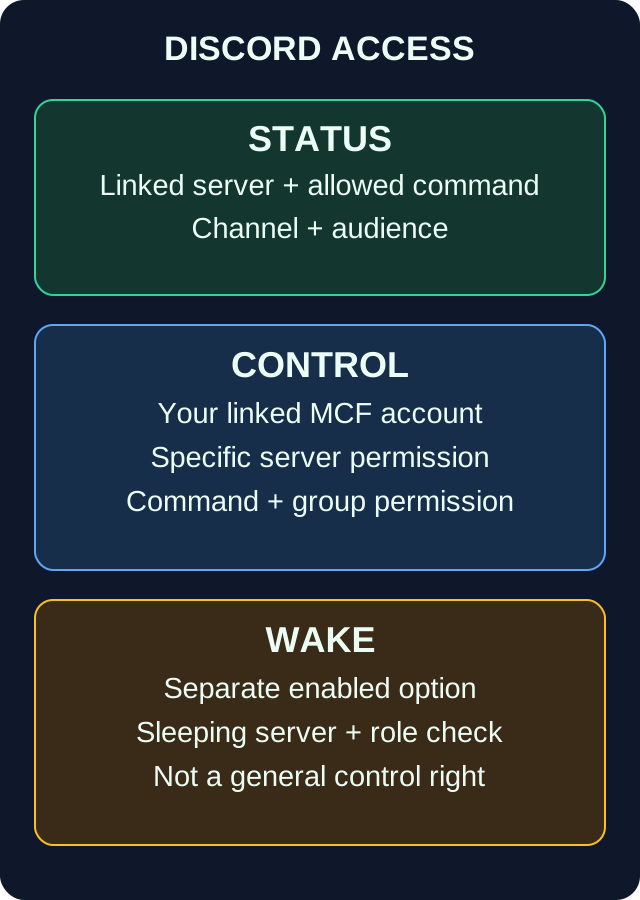
The graphic separates reading, controlling, and waking. Only controlling requires the matching linked customer identity and server permissions here; the separate wake path must be offered and approved in the first place.
Connect the bot to your guild and the right world
Open your MCF server and Discord & Notifications, then Link Discord Bot. Check the server name first. With the Free plan, two servers can be created but only one can run at a time; linking a different world would therefore be a real mistake.
As the owner, you use Invite Bot. In the Discord dialog, you select your intended guild, meaning your group's Discord server. For that you need the required management permissions in that guild. Use the link from the MCF panel instead of inviting an unknown bot from a search engine.
The current invitation flow can lead back to the panel after approval and link the guild directly. Check the list of linked guilds after returning. A mere indication that a bot was invited is not yet proof that it is connected to exactly this Minecraft world.
Your Discord connection in the customer profile is also important for assigning your identity and for later control commands. Connect your own Discord account to your own MCF account; do not share an owner login with the group.
If the automatic link is missing
Generate a new code in the panel. The manual link code can be used once and is valid for ten minutes in the checked flow. It is not a permanent server address and does not belong in a normal channel message.
Type /connect in a channel of the intended guild, select the bot command from the Discord suggestions, and paste only the code into the code option field. Pasting an entire command line as chat text does not execute a slash command.
Discord describes these selected application commands in its Application Commands documentation. If the code has expired or been redeemed, generate a new one; do not post the old one for troubleshooting.
First test only status with a regular friend
The individual commands in the “Status & Community” group (/status, /players, /uptime, /link, /pool, /credit, /invoices) are enabled by default. Commands for controlling the server or managing the community are disabled at first. Test /status, /players, and /link first. Decide whether the whole guild or only a specific role may use this group. If needed, also restrict the allowed Discord channels and save the setting.
Have a regular player without Discord administrator permissions select /status in the designated channel. Check together whether the response matches the right world. If several servers are linked to the same guild, check the offered server selection or the configured default world.
Publish a player display only in a suitable circle. Reading the status is no reason to approve additional control commands for every role. /credit and /invoices concern the entire customer account and reply only to the account owner; the general status approval does not make them public for the group of friends.
Give a collaborator only one specific task
A typical case: a friend should restart when a start gets stuck, but not change any files and not ban any players. A collaborator is included in the checked Free plan. This limit concerns the number; their selectable permissions are not automatically limited to starting.
Create the collaborator with their own account and assign Restart specifically. The person connects their own Discord account in their profile. First enable the required command /restart. Then, in the panel under Commands and Access, choose the appropriate access option for the “Control server” group: “Specific roles”, “Specific users”, or “Collaborators only”. The approval applies per group, so also to the other commands of that group; the actual effect is limited by the collaborator's server permission control.restart.
| Task | Permission and limit |
|---|---|
| Start | control.start; not automatically stop or restart |
| Stop | control.stop; ends a running session and requires clear agreement |
| Restart | control.restart; inform players beforehand |
| View console | Console and websocket access; not required for a plain restart |
| Moderate players | /kick, /ban, /unban, and /whitelist belong to the “Control server” group and require the moderation permission; not part of a plain restart approval |
| Change bot settings | Separate management permission; not a necessary part of normal control |
/send and /maintenance |
Remain reserved for the owner; a collaborator permission does not replace that |
Operator permissions in Minecraft are a different level. /restart via the bot does not require OP in the game. Conversely, OP does not replace any MCF server permission. The basic group invitation is explained in Organize Minecraft with Friends.
Check the approvals together
Three things must match: Discord lets the slash command through, the command and group approval in the MCF panel is correct, and the connected customer account has the specific server permission. For interactive control buttons, a further approval may be necessary.
Discord can block commands for channels or roles under Server Settings → Integrations → Command Permissions; a command blocked there does not reach the bot. What Discord lets through is then checked by the approval in the panel. An approved Discord role without a matching customer identity still may not execute a normal control command. A Discord administrator may also see a different command view than an ordinary friend; therefore test with the actual target account.
Test an allowed restart only at a time agreed with the group. Afterwards, check the server status and a real join. An accepted command does not guarantee an immediately successful Minecraft start. If the bot requires confirmation from the owner, the owner completes it via the intended panel path. Additional Discord or collaborator permissions do not replace this requirement.
Sleeping and waking without general control permissions
A separately offered wake button can be intended to let a guild member without an MCF account wake a sleeping server. It remains its own path with explicit activation, a check of the sleep state, and retry limits.
Do not confuse it with a collaborator's normal /start. If the matching button or approval is missing in your setup, use the wake path provided in the panel. A role change alone does not create a status message and does not generally unlock a limited function.
For a wake approval, an empty role list in the checked flow does not automatically mean "nobody". It can allow the whole guild. If only your player role should be able to wake, it must actually be entered and saved. Check the result with a role member and with your own test account without this role.
After waking, the queue and Minecraft start can follow. Several simultaneous clicks do not make the world ready faster. A sleeping Free server has not automatically crashed; pay attention to the displayed state before anyone creates a new server or starts it multiple times. Wait for the status and only connect with the correct address and edition. Waking also does not guarantee permanent 24/7 operation.
If friends get no response or no permissions
Work from the visible problem. If the command is missing entirely, check the bot installation, the selected slash command, and the Discord integration permissions. If it is explicitly rejected, check the saved group and channel approval and then your own connected customer account. If there is no response at all, also check whether the bot is allowed to reply in the affected channel.
A collaborator with start permission does not automatically have restart permission. A disabled customer or collaborator connection must not be replaced by a broader Discord role. For a message about restricted button functionality, use the path that is actually offered; do not modify other people's accounts to bypass an approval.
If the wrong server responds, check the default world and server selection. For troubleshooting, copy only the harmless error text and the time. Link codes, account secrets, and private billing data do not belong in the group chat.
Clean up permissions after the group session
If a collaborator leaves, revoke their server permissions and the associated Discord approval. Then check with their own account that control is no longer possible. Do not accidentally remove access for all remaining friends.
If an old Discord guild is no longer used, remove its server link in the panel. The bot installation in Discord is a separate state and can additionally be removed there. An old message that is still visible does not grant any lasting server permissions.
FAQ
Can all friends restart the server if they have the same role?
No. Normal control commands additionally require a connected personal customer account with active matching server permissions. The Discord role is only one of the approvals.
Does a friend need a collaborator slot for status queries?
Not for an appropriately approved read function. Test the regular user in the designated channel; a read command does not grant control permissions.
Do I have to use a code after every bot invitation?
No, if the offered return path has already linked the guild correctly. Check the list in the panel. Only if the link is missing do you follow the manual one-time code path.
Can my free collaborator only start?
No. In the checked scope, one collaborator is included, and you can choose their specific permissions. For example, assign only restart if that is their task; this does not create a second collaborator slot.
Why can someone without an MCF account still wake a sleeping server?
An explicitly approved separate wake path can use guild membership and selected roles. It does not allow normal stop, restart, or console actions and must be available for the specific setup.
Why do control buttons work differently from slash commands?
The checked button path has additional approval limits. Check its specific message and use only offered functions; a generally enabled Discord integration does not automatically mean button access for every account.
Sources and review status
The invitation flow, link code, MCF server permissions, Free collaborator scope, and separate wake check were verified on October 7, 2026. This revision does not claim a new bot test in a real customer guild.