コンテンツへスキップ

Until 12月 31: 4 GB for €4 a month. On the yearly plan you pay at most €1 per GB of RAM, for Minecraft Java, Minecraft-Modpacks and eight more games.

See the offer

Set up with AI

Tell your server what to do. For free.

Connect Claude or ChatGPT to your server and handle everything in the chat: plugins, files, console, backups. No pass and no subscription, for every server at mcfreehost.

Free · every feature included

Works with ChatGPTClaudeClaude CodeCodex

Example · Claude mcfreehost connected

Install EssentialsX on my Minecraft server and restart it.

3 actions run: plugin found, installed, server restarted

Done. EssentialsX is installed and the server was back online after 41 seconds.

PluginVersionStatus
LuckPerms5.4active
EssentialsX new2.21active
You confirm reinstalls, software changes and account actions in your browser. You choose which servers the AI can see.

Connect in two steps

  1. Step 1

    Connect

    Opens Claude with the connector already filled in. Confirm it there and sign in with your mcfreehost account.

    Add to Claude (opens claude.ai in a new tab) Using ChatGPT, Claude Code or Codex? See the guide
  2. Step 2

    Get started

    Opens a new chat with this message:

    Use the mcfreehost connector to check the status of my server. Don’t change anything yet.
    Start chat in Claude (opens claude.ai in a new tab)

    The message is then in the input field. You send it yourself.

Included at mcfreehost at no extra cost:

  • Files
  • Console
  • Backups
  • Plugins and mods
  • Start and stop
  • Troubleshooting

Your AI provider may charge for its own service.

Watch your assistant at work.

Animated demo with sample data. No server is changed here.

Your AI assistant Example
Your AI assistant

Hi! I can check your server, change settings, create a backup or import a world. What should I do?

You

Check my server and the latest console messages.

The assistant is replying …
Your AI assistant

Your server is running. In this example, the latest console messages show no startup errors. I have not changed anything.

Check complete. Nothing was changed.
Your AI assistant

Hi! I can check your server, change settings, create a backup or import a world. What should I do?

You

Set the difficulty in my server.properties to normal.

The assistant is replying …
Your AI assistant

I saved difficulty=normal in server.properties. Your connection needs the appropriate file permissions for this.

Setting saved in this example.

Your AI assistant

Hi! I can check your server, change settings, create a backup or import a world. What should I do?

You

Create a backup and check that it has finished.

The assistant is replying …
Your AI assistant

The backup is complete. I then checked that it exists.

Backup complete and checked in this example.

Your AI assistant

Hi! I can check your server, change settings, create a backup or import a world. What should I do?

You

Import the world I uploaded.

The assistant is replying …
Your AI assistant

I can import the world you uploaded. First, confirm the world import in your browser.

Confirm the world import in your browser

Confirmed in your browser.

World imported in this example after your confirmation.

最初に試したい3つの指示

Minecraftサーバーが起動しない。ステータス、バージョン、最新のコンソール行を読んで、原因を説明して。まだ何も変更しないで。

コピーできなかった。テキストを選択して手動でコピーして。

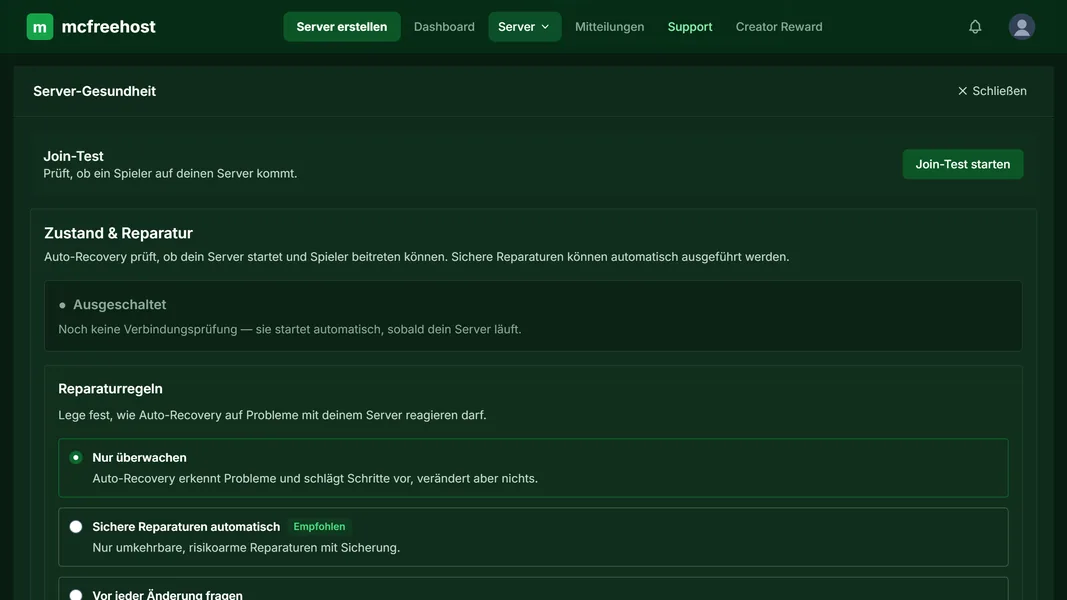
Health and join test · mcfreehost

Health and join test

Ask it to check the status and recent console messages before making changes.

Example views from the mcfreehost panel. You decide what your assistant can do there.

この3人のフレンドをホワイトリストに追加して、そのあとホワイトリストが有効になっているか確認して。

コピーできなかった。テキストを選択して手動でコピーして。

このプラグインが自分のPaperのバージョンに合うか確認して、インストールの前に聞いて。

コピーできなかった。テキストを選択して手動でコピーして。

指示で実際に何が行われるかは、サーバー、プラン、許可した権限によって変わるよ。

アシスタントがMinecraftサーバーでできること

Example views from the mcfreehost panel. You decide what your assistant can do there.

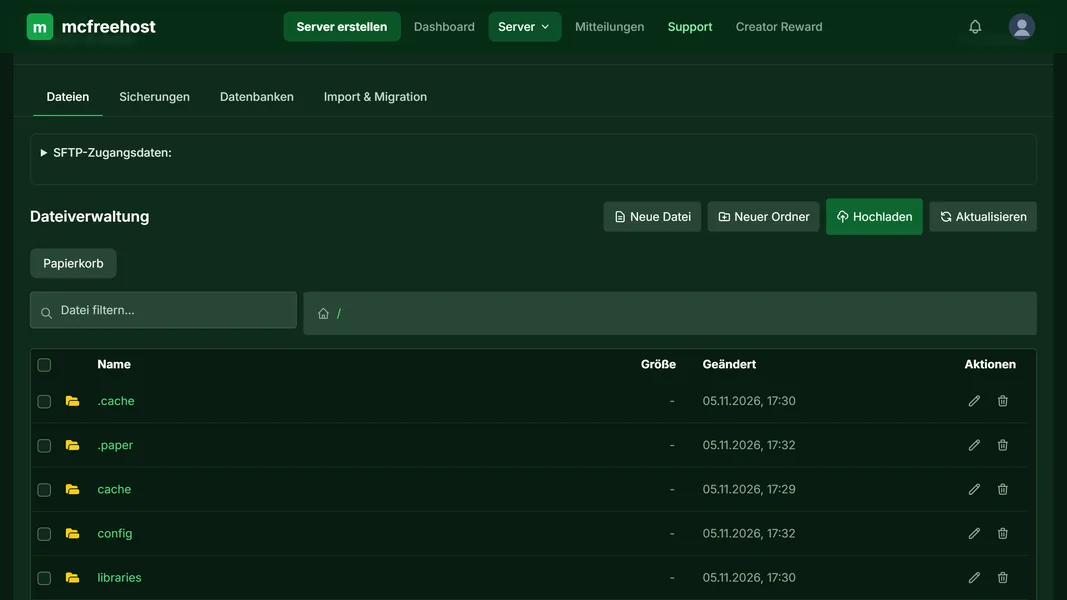
Files · mcfreehost

Files

Have settings in server files adjusted. You choose whether to grant file access.

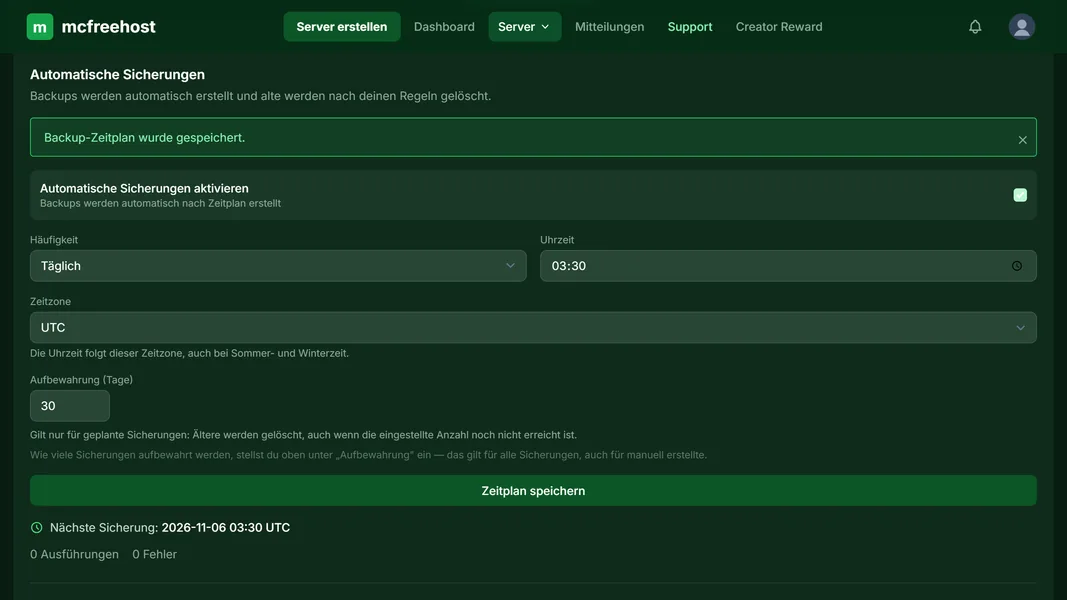
Backups · mcfreehost

Backups

Have backups created and their completion checked. You manage the schedule in the panel.

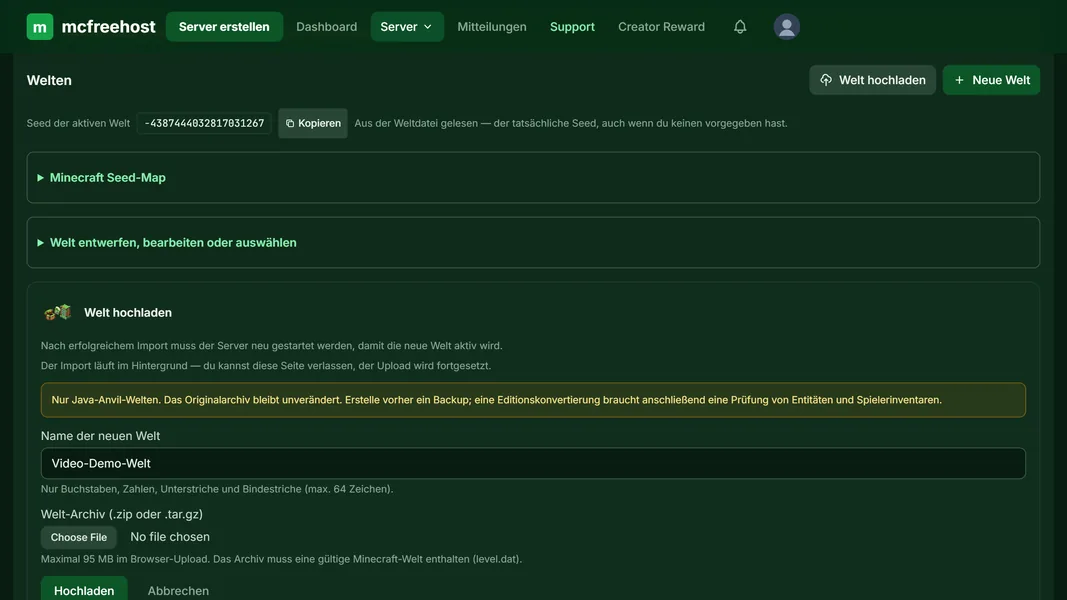
Worlds · mcfreehost

Worlds

Have an existing world imported. With the standard connection, you confirm this step in your browser.

APIのすべての操作を表示

カタログにはAPIのすべての操作が載っていて、ほかのゲーム向けやプレミアム機能向けのものも含まれているよ。きみのサーバーで使えるのは、ゲーム、プラン、サーバーソフトに合っていて、なおかつそのアクセスに許可した操作だけだよ。

Server & power

  • servers_list
  • server_status
  • server_start
  • server_stop
  • server_restart
  • reinstall_status
  • server_tps

Players

  • players_list
  • whitelist_read
  • whitelist_add
  • whitelist_remove
  • bedrock_allowlist_read
  • bedrock_allowlist_add
  • bedrock_allowlist_remove
  • bedrock_allowlist_enforce
  • bedrock_pocketmine_whitelist_read
  • bedrock_pocketmine_whitelist_add
  • bedrock_pocketmine_whitelist_remove
  • players_live
  • players_broadcast
  • player_message
  • players_history
  • unban_requests_list
  • unban_request_accept
  • unban_request_reject
  • whitelist_requests_list
  • whitelist_request_accept
  • whitelist_request_reject

Console

  • console_read
  • console_command
  • operator_reserve
  • log_share

Files

  • files_list
  • file_read
  • file_write
  • file_patch
  • directory_create
  • files_delete
  • trash_list
  • trash_restore
  • trash_purge
  • file_copy
  • file_rename
  • files_compress
  • file_decompress
  • server_icon_status
  • server_icon_set
  • server_icon_remove

Backups

  • backups_list
  • backup_create
  • backup_restore
  • backup_delete
  • backup_rename
  • backup_protect
  • backup_destinations_list
  • backup_destination_connect
  • backup_destination_bind
  • backup_destination_test
  • backup_destination_disconnect
  • backups_recovery_list
  • backup_cloud_restore
  • backup_incremental_create
  • backup_incremental_restore
  • backup_mirror
  • backup_schedule_read
  • backup_schedule_update
  • backup_settings_update
  • backup_files_browse
  • backup_files_restore

Schedules

  • schedules_list
  • schedule_create
  • schedule_update
  • schedule_delete
  • task_create
  • task_update

Configuration

  • config_read
  • config_write
  • bedrock_gamerules_read
  • bedrock_gamerule_set
  • eula_status
  • eula_accept

Worlds

  • worlds_list
  • world_create
  • world_switch
  • world_delete
  • world_studio_job_status
  • world_studio_cancel
  • world_studio_import
  • world_studio_snapshot
  • world_studio_snapshot_status
  • geoworld_search
  • geoworld_status
  • geoworld_start
  • geoworld_cancel
  • world_library_list
  • world_library_install
  • schematics_list
  • schematic_place
  • bedrock_worlds_list
  • bedrock_world_create
  • bedrock_world_switch
  • bedrock_world_delete
  • world_import_status
  • world_import_install

Versions

  • versions_list
  • version_status
  • version_preview
  • version_change
  • java_runtime_read
  • java_runtime_select
  • loader_builds_list
  • loader_build_change

Server software

  • software_catalog
  • software_preview
  • software_change

Plugins & mods

  • addons_list
  • addons_search
  • addon_versions
  • addon_install
  • addon_update
  • addon_remove
  • live_map_status
  • live_map_enable
  • live_map_continue
  • plugin_analysis
  • plugin_outdated_mods_status
  • plugin_outdated_mods_choose
  • plugin_outdated_mod_reenable
  • plugin_config_files
  • plugin_config_read
  • plugin_config_write
  • mod_settings_list
  • mod_settings_read
  • mod_settings_save
  • mod_settings_run_action
  • spark_diagnostic_start
  • spark_report
  • hologram_list
  • hologram_toggle
  • skript_list
  • skript_toggle
  • skript_reload
  • skript_modules_list
  • skript_module_save
  • worldguard_regions
  • worldguard_status
  • worldguard_reload
  • worldguard_global_flag
  • worldedit_reload
  • worldedit_group_access
  • veinminer_status
  • veinminer_apply_preset
  • chunky_status
  • chunky_prewarm_start
  • voice_chat_status
  • voice_chat_setup
  • voice_chat_save_config
  • voice_chat_repair_crossplay
  • voice_chat_restart
  • mc_settings_read
  • mc_settings_save
  • mc_settings_world_property
  • mc_settings_core_status
  • mc_settings_core_lookup
  • minecraft_maker_runs
  • minecraft_maker_create

Modpacks

  • modpacks_catalog
  • modpack_preview
  • modpack_status
  • modpack_install
  • modpack_update
  • modpack_settings_read
  • modpack_settings_write
  • modpack_versions
  • modpack_client_pack_read
  • modpack_client_pack_refresh
  • modpack_client_pack_rotate_link
  • modpack_client_pack_mod_mode
  • modpack_profile_find
  • modpack_profile_apply
  • modpack_rollback

Bedrock packs

  • bedrock_packs_list
  • bedrock_catalog
  • bedrock_pack_install
  • bedrock_pack_enable
  • bedrock_pack_disable
  • bedrock_pack_remove
  • bedrock_migration_status
  • bedrock_migration_start
  • bedrock_migration_confirm_join
  • bedrock_migration_cancel
  • bedrock_migration_revert

Server settings

  • notifications_read
  • notification_rules_update
  • notification_alerts_update
  • notification_quiet_hours_update
  • settings_read
  • settings_update
  • auto_update_read
  • auto_update_set
  • profile_quiet_hours_read
  • profile_quiet_hours_update
  • discord_webhook_read
  • discord_webhook_set
  • discord_events_update
  • discord_webhook_test
  • startup_variables_read
  • startup_variables_update

Metrics and history

  • metrics_current
  • metrics_history

Activity log

  • activity_list

Health and join test

  • health_status
  • join_test_start
  • join_test_status
  • health_crash_diagnosis
  • health_repairs_list
  • health_boot_repair
  • health_plugin_repair_preview
  • health_plugin_repair_apply

Databases

  • databases_list
  • database_create
  • database_delete
  • database_password_rotate

World export and import

  • export_start
  • export_status

Server address

  • subdomain_check
  • subdomain_change

Game tools

  • cs2_build_update
  • rust_wipe_schedule_read
  • rust_wipe_schedule_create
  • rust_wipe_schedule_cancel
  • rust_startup_params_read
  • rust_startup_params_update
  • rust_map_preview
  • cs2_map_pool_read
  • cs2_map_pool_write
  • cs2_match_status
  • cs2_match_load
  • cs2_match_control
  • cs2_map_change
  • ark_ini_read
  • ark_ini_write
  • ark_mod_order_read
  • ark_mod_order_write
  • valheim_worlds_list
  • valheim_world_activate
  • valheim_backups_list
  • valheim_backup_create
  • valheim_plugins_list
  • valheim_plugin_toggle
  • minecraft_players_admin_read
  • minecraft_player_op
  • minecraft_player_deop
  • minecraft_player_kick
  • minecraft_player_ban
  • minecraft_player_unban
  • minecraft_crossplay_read
  • minecraft_crossplay_set
  • minecraft_gamerules_read
  • minecraft_gamerule_set
  • minecraft_cracked_mode_read
  • minecraft_cracked_mode_set
  • minecraft_presets_list
  • minecraft_preset_apply
  • minecraft_anti_xray_read
  • minecraft_anti_xray_set
  • minecraft_item_obfuscation_read
  • minecraft_item_obfuscation_set
  • minecraft_end_access_read
  • minecraft_end_access_set
  • minecraft_gameplay_options_read
  • minecraft_gameplay_option_set
  • minecraft_many_players_read
  • minecraft_many_players_set

Reinstall

  • server_reinstall

Account

  • account_read
  • account_profile_update
  • account_billing_history
  • account_subscriptions
  • account_email_change
  • account_password_change
  • account_delete_request
  • subscription_cancel
  • subscription_reactivate
  • account_security_status
  • account_two_factor_manage
  • account_payment_methods_manage
  • account_order_prepare

Support tickets

  • support_ticket_create

All tools of the AI connector

Connect with Claude or ChatGPT

Add this address as a custom connector. Then sign in here and choose servers, permissions and duration. You don’t need a key for this.

Connector address

https://mcfreehost.com/api/automation/v1/mcp

コピーできなかった。テキストを選択して手動でコピーして。

Menu names are shown as they appear in English; in your language they read similarly.

What you need

You need Claude or ChatGPT on a plan that allows custom connectors:

In Claude

Claude: Free (one custom connector), Pro, Max, Ultra, Team and Enterprise.

On Team and Enterprise, a team owner adds the connector.

  1. Open “Customize” → “Connectors” and choose “+ Add” → “Add custom connector”.
  2. Enter a name, for example mcfreehost, and paste the address.
  3. Under “OAuth client”, choose “Register automatically”, then “Add”.
  4. Choose “Connect”, sign in here and allow access.

In ChatGPT (in the browser)

ChatGPT: Business, Enterprise and Edu, only in the browser at chatgpt.com.

On Business, an admin or owner adds the server. OpenAI currently lists no other ChatGPT plans for this.

  1. On chatgpt.com, open “Plugins” and choose “+” → “Add custom MCP server”.
  2. Enter a name, for example mcfreehost, and paste the address under “Connection”.
  3. Choose OAuth for sign-in, confirm the notice and sign in here.

As of 2026年11月2日, according to the Anthropic and OpenAI help pages.

You have neither? Ask our support directly

For developers: Claude Code, Codex, REST

Claude CodeやCodexでターミナルから使う

  1. Minecraftサーバーがあるアカウントでmcfreehostにログインして、パソコンにClaude CodeかCodexをインストールしよう。
  2. 使うアシスタント用の2つのコマンドをコピーして、パソコンのターミナルで実行しよう。Minecraftのコンソールに入力するものじゃないよ。
  3. ブラウザでサーバー、権限、有効期間を選ぶよ。最初は読み取りだけで十分。トークンをコピーする必要はないよ。
  4. まずはステータス、バージョン、最新のコンソール行など、何も変更しない質問から始めよう。答えが正しいとわかってから、変更をともなう指示に進もう。

ブラウザでログインしてサーバーを許可

アシスタントに接続先を登録して、ログイン画面を開こう。mcfreehostにログインして、どのサーバーをどの権限で許可するかを選ぶよ。

この方法なら、コマンドにトークンを打ち込む必要はないよ。

claude mcp add --scope user --transport http mcfreehost https://mcfreehost.com/api/automation/v1/mcp
claude mcp login mcfreehost

コピーできなかった。テキストを選択して手動でコピーして。

または:アクセスを手動で作成

ブラウザログインに対応していないプログラム向けに、プロフィールで個人用アクセスを作成できるよ。例ではプレースホルダーを使った設定を紹介しているから、自分のトークンに置き換えてね。

Important: this is not a command for your server's game console. Enter it in the terminal on your own computer (Windows: PowerShell, macOS and Linux: Terminal).

claude mcp add --scope user --transport http mcfreehost https://mcfreehost.com/api/automation/v1/mcp --header "Authorization: Bearer <TOKEN>"

Codexはアクセス情報を環境変数で受け取るよ。exportの行は今開いているターミナルでしか効かないから、次回以降も使うなら自分用のシェルプロファイルに書き込んでおこう。

Important: this is not a command for your server's game console. Enter it in the terminal on your own computer (Windows: PowerShell, macOS and Linux: Terminal).

export MCFREEHOST_ASSISTANT_TOKEN="<TOKEN>"
codex mcp add mcfreehost --url https://mcfreehost.com/api/automation/v1/mcp --bearer-token-env-var MCFREEHOST_ASSISTANT_TOKEN

独自のMCPクライアントにはStreamable HTTPとBearerトークンが必要だよ。クライアントがOAuthに対応しているなら、代わりにブラウザでログインできる。

URL: https://mcfreehost.com/api/automation/v1/mcp
Header: Authorization: Bearer <TOKEN>

すべての操作はREST APIでも使えるよ。OpenAPIファイルにすべての呼び出しが説明されている。

Important: this is not a command for your server's game console. Enter it in the terminal on your own computer (Windows: PowerShell, macOS and Linux: Terminal).

curl -H "Authorization: Bearer <TOKEN>" https://mcfreehost.com/api/automation/v1/servers

ここの<TOKEN>はただのプレースホルダーだよ。本物のアクセス情報は、アシスタントの非公開の設定にだけ入力しよう。

変更を頼む前に
  • スリープ中の無料サーバーでは、起動するとまず「サーバーを起こしています」と返ってくるよ。アシスタントには待ってからステータスを再確認させよう。
  • Modpackのインストール、バージョン変更、バックアップは、APIが指示を受け付けたあとも処理が続くよ。完了したかを確認させよう。
  • ファイル権限とコンソール権限があれば、アシスタントはいろいろ変更できてしまう。本当に必要な作業のときだけ許可しよう。
  • この方法ではメールアドレス、パスワード、解約には触れられないよ。そういう操作は必ず自分でブラウザから確認しよう。
  • もう使わないアクセスはプロフィールで取り消そう。取り消した瞬間に無効になるよ。

無料サーバーは、まず起こしてからチェック

mcfreehostの無料サーバーは、プレイヤーがいない状態が15分続くとスリープするよ。ワールド、プラグイン、設定はそのまま残る。アシスタントに起動を頼むと、その指示でサーバーが起き上がる。ただし最初の応答は「起動が始まった」という意味にすぎないんだ。そのあとアシスタントにステータスを繰り返し確認させて、サーバーが本当に動き出してからコンソールを分析させよう。そうすれば、スリープ中のサーバーをクラッシュと勘違いすることはないよ。

バージョンに合ったプラグインとMod

新しいMinecraftサーバーで一番よくあるトラブルは、サーバーのバージョンに合わないプラグインやModだよ。PaperはBukkitとSpigotのプラグインを読み込み、Fabric、Forge、NeoForgeはそれぞれ専用のModが必要になる。インストールの前には毎回、アシスタントにサーバーソフトとバージョンを読み取らせて、そのファイルが合う理由を説明してもらおう。無料プランのRAMは2 GBだから、大きなModpackは事前に確認しておくと安心だよ。それでもサーバーが起動しないときは、足りないModやメモリを食いすぎているModがたいていコンソールに出ているよ。

全部を許可せずにフレンドを招待

フレンドと遊ぶだけなら、指示はひとつで足りることが多いよ。「このプレイヤーたちをホワイトリストに追加して、ホワイトリストが有効か確認して」。これに必要なのはプレイヤー権限だけで、ファイルやアカウントへのアクセスはいらない。その権限だけを、対象のサーバーにだけ与えよう。無料サーバーとプレミアムサーバーは個別に許可するし、あとから作ったサーバーが自動で含まれることはないよ。

アシスタントに何を許すかはきみが決める

  • フルアクセスではなく個別の権限:読み取り、起動と停止、プレイヤー、コンソール、ファイル、アカウントを別々に選べるよ。
  • 選んだサーバーだけ:アクセスが見られるのは、きみが渡したサーバーだけ。新しいサーバーが勝手に加わることはないよ。
  • 有効期限:アクセスがどれくらいの期間有効かを自分で決められるよ。
  • 即時取り消し:プロフィールで取り消すと、そのアクセスでのリクエストはすべて拒否されるよ。
  • ログ:すべての操作が、日時とアクセス情報つきでサーバーのアクティビティ履歴に残るよ。
  • リクエスト制限:アシスタントがループにはまっても、サーバーが呼び出しで埋め尽くされることはないよ。
  • チャットにトークンを貼らない:アクセス情報は、アシスタントの保護された設定欄にだけ入れよう。

automation:unattended は、ブラウザでの確認なしで作業するための追加権限だよ。これがない場合、アシスタントはサーバーソフトの変更、Modpackのインストールや更新、サーバーの再インストール、ワールドのインポート、サーバーアドレスの変更、サポートチケットの作成の前に、ログイン中のアカウントできみに確認を求める。メールアドレス、パスワード、解約、アカウント削除は、この権限があっても必ずきみの確認が必要だよ。それ以外のことは、許可した権限の範囲ですぐに実行するよ。

mcfreehostのAI管理に関する質問

無料サーバーでも使える?

使えるよ。APIはmcfreehostのすべてのサーバーについていて、無料プランでも追加料金はかからない。ただしClaudeやChatGPTで使うには、それぞれのサービスでカスタムコネクタが使えるプランが必要で、そちらで費用がかかる場合があるよ。

サーバーがスリープ中だったらどうなる?

起動か再起動の指示でサーバーが起き上がるよ。ワールドが読み込まれるまで少し時間がかかる。コンソールコマンドを送ったりエラーを調べたりする前に、もう一度ステータスを確認するようアシスタントに頼もう。

どのアシスタントをつなげられる?

一番かんたんなのは、ブラウザ版のClaudeかChatGPTにカスタムコネクタとして追加する方法だよ。ターミナル派ならClaude CodeかCodexを使おう。自作のプログラムからは、Streamable HTTP経由のMCPかREST APIで利用できるよ。

アシスタントがお金を使ったり、プレミアムに切り替えたりできる?

できないよ。注文、プレミアムへの切り替え、支払いには、必ずログイン中のアカウントでのきみの確認が必要。きみなしでアクセスが支払いをすることはないよ。

アクセスを取り消すには?

プロフィールの「自動化API」でアクセスを取り消そう。それ以降、mcfreehostはそのアクセスでのリクエストをすべて拒否するよ。アシスタントがそれまでに変更した内容はそのまま残るけど、そのためにバックアップがあるよ。

Panel view

Escape closes the large view. At original size, you can pan within the view.