You can create a Minecraft Bedrock server at mcfreehost within the offered Free scope without a payment method. For phone and Bedrock on Windows, you connect using the Bedrock address and assigned port from the panel. On Xbox, PlayStation, and Switch there is an additional connection route; a successful join from a phone does not prove that a console connection works.
For a Bedrock-only group, choose an offered Bedrock Dedicated Server (BDS). A native Bedrock server does not accept Java clients. If Java friends should join as well, you need a supported Java crossplay server with Geyser and Floodgate instead.
Last checked: October 7, 2026. The MCF Free scope includes 2 GB RAM and 10 GB storage. Two Free servers can be created, and one can run at a time. Minecraft itself and any console online subscriptions are separate from this.
Decide on the Edition Before Creating the Server
On Windows, both Java and Bedrock may be installed; check which game you actually launched. Android and iOS use Bedrock. Consoles also belong to the Bedrock device world, but they do not offer a general way to enter external servers like phones and Windows do.
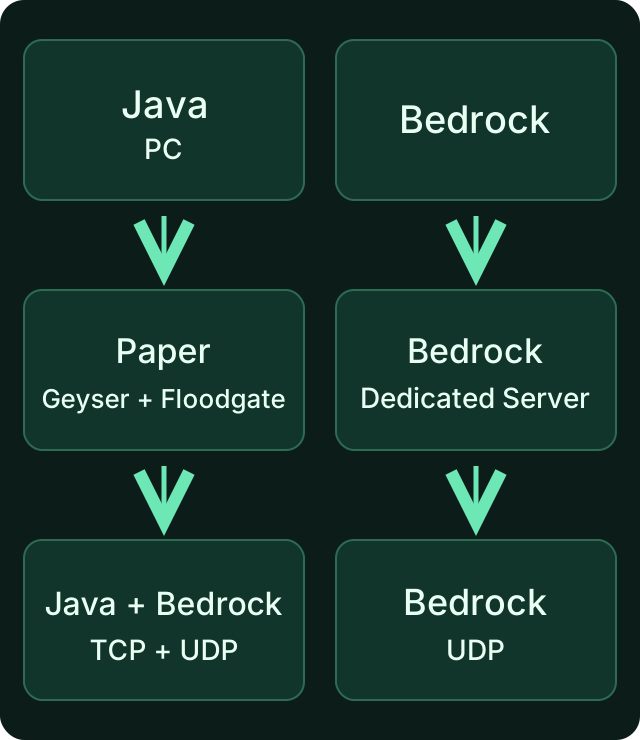
On the right is the native Bedrock route covered in this guide. On the left is the separate Java crossplay route. Using the same server address does not automatically make the two editions compatible.
BDS, an alternative Bedrock server implementation, and a Java modpack are different pieces of software. Check which variant is actually offered. A Java mod file or a Paper plugin cannot simply be dropped into BDS. An existing Bedrock world is also not converted without loss just by selecting a different server type.
Create It for Free and Wait for the Finished Start
- Open the current free entry point and sign in with your own MCF account.
- Check whether the native Bedrock variant is offered for your plans, and select it deliberately.
- Assign the intended name and an available address. Read the confirmed plan and its limits.
- Wait until provisioning and installation have finished, and check in the panel that the start was successful.
- Only then take over the current connection details and the version that is actually running.
Pressing Start repeatedly will not speed up an installation in progress. This guide does not promise a fixed provisioning time. If the start fails, read the specific error message before you change client ports or world files. The complete basic setup can be found under Create a Minecraft Server for Free.
Phone and Windows: Enter Address and Port Separately
On Android, iOS, and in Bedrock on Windows, open Play → Servers → Add Server. Menu labels may change with the game version. Give the entry any display name you like; this name is not the connection address.
Then copy over the panel values:
Server name in the game: [freely chosen display name]
Server address: [Bedrock address from the panel]
Port: [assigned Bedrock port from the panel]
The brackets are placeholders. The address field must not contain https://, an appended :Port, or spaces. The port has its own field. Save the entry and test joining the world, not just a visible ping in the list.
Mojang describes entering an external server in Playing Minecraft on a Server. Microsoft lists 19132 as the BDS software default; this does not imply an MCF port assignment. Always use the current panel display, even if an old video shows a different value.
| Device | Direct approach | Additional check |
|---|---|---|
| Android / iOS | Save an external server with panel address and port | Regular Bedrock version, account, and multiplayer permission |
| Bedrock on Windows | Same as on the phone; launch Bedrock instead of Java | Version and separate address/port fields |
| Xbox / PlayStation / Switch | Prepare a separate console route | Platform account, possible online membership, and connection method |
You are connecting to a remote hosting server. Local Windows loopback guides for a server on the same PC are therefore not part of this process.
Consoles: Test Separately Before the Group Starts
The normal console server list does not offer free entry of arbitrary external hosts. The Geyser console documentation describes additional third-party routes. Whether such a route works on your device and network has to be verified there.
One possible route is BedrockConnect. The project itself offers a server list browser and describes a device-specific DNS method. This is an independent project, not part of your MCF server, and not an official Minecraft console feature.
Here is how to prepare an attempt:
- First check the console's normal multiplayer access, the signed-in account, and family permissions. Depending on the platform, a separate online membership may be required.
- Read the current guide of the chosen project for exactly your console. Do not take over a DNS address from an old comment.
- Note your existing network settings. If you change DNS, do so on the intended device and keep a way back to the original setting.
- Open the documented server list route and enter the MCF Bedrock address and panel port there.
- Test actually joining the world. If you run into problems with other services, restore the original network settings.
The friends list is not a general gateway to a dedicated server. A friend playing on a remote server does not automatically publish it as a joinable local world. "Add Friend" bridges require their own technology. BedrockConnect also currently notes that its public bots are switched off. So do not plan around an available free bot based solely on an older video.
Other routes documented by Geyser use an additional device on the local network. They also have to be set up separately; not every method supports every console. If the current procedure does not work, do not replace the proof with the claim "it always works on consoles".
Only Let Your Friends In
For a private native Bedrock group, you use the BDS access list. In the BDS guide, Microsoft describes the allow-list setting and gamertags. The command reference explains how to manage it.
Via the appropriate panel route or the authorized console, you add only the intended gamertags. For names containing spaces, follow the quotation mark guidance in the input hint. Test one allowed and one non-allowed regular player; OP is not required for ordinary play.
Do not use a Java UUID list as a substitute for BDS gamertags. A Java whitelist, a BDS allowlist, and a Floodgate identity belong to different setups. Regular friends do not need a shared MCF account password to join. A co-manager gets a separate panel access.
What to Check After a Bedrock Update
Client and server need a compatible Bedrock protocol. Not every differing patch number is automatically incompatible, but even a patch can change the protocol. Microsoft explains this distinction in the BDS documentation.
If "Outdated Server" or "Outdated Client" appears, note both version numbers. Also check whether the client uses a regular release or Preview/Beta. A Preview client is not a suitable replacement for every regular server.
Check the update status in the panel. Back up the world before updating the server, and then test again. There is no documented promise here that every new store client will be matched by the host within a fixed number of hours. How to handle deliberate update pauses is explained in Disable Automatic Updates.
Sleep Mode Is Not a Data Backup
A Free server that has been played on before can go to sleep after 15 minutes without players; for a server that has never been played on, the 60-minute limit applies. The sleep times mentioned are default values. The effective server configuration as well as running backup or maintenance processes can postpone the start of sleep. A first connection attempt can request the wake-up. Check the start status and repeat the join if needed. "Guaranteed to wake up automatically" is not a documented promise.
Sleeping does not delete the world immediately. For long pauses, however, the verified recycling periods apply: 14 days of inactivity or seven days without activation, and a limited Free archive retention of 30 days. Keep important worlds stored outside the server as well. See 24/7 for Free: Check the Limits.
You first import an existing world as a copy along with its required packs. Check known builds, inventories, and game mechanics as well as a harmless change after a normal restart. A successful connection alone does not verify a lossless world transfer.
Narrow Down Connection Errors Systematically
| Observation | First check |
|---|---|
| Cannot join the world after a new server order | Check installation and finished start in the panel |
| Entry cannot be saved correctly | Address without port suffix and spaces, port in its own field |
| Outdated server or client | Check the actual protocol/version combination and Preview/Beta |
| Phone works, console does not | Check the console route and platform permissions separately |
| World join rejected due to access list | Check the actual BDS gamertag and the active allowlist |
| Error only after a long pause | Check the sleep status and, if applicable, retention in the account |
An error code alone proves neither a broken world nor a hosting outage. Note the time, device, client version, and the exact message. If possible, test with a second device or network, without changing configuration and world at the same time. Do not give passwords or secret account data to support.
FAQ
Is a Bedrock server possible at MCF without a credit card?
Within the offered Free scope, yes. During setup, check the native Bedrock variant and its resources. Playing entitlement and possible console online subscriptions are separate.
Can Java friends join the native Bedrock server?
Not directly. For both editions, you need a supported Java crossplay server. The friends guide helps you with this decision.
Which Bedrock port do I use?
The currently assigned port from the panel. 19132 is a software default and not a general assignment for your server.
Is it enough to add a friend on the console?
Not in general for a remote dedicated server. Use a currently documented console route and test it with your device. Third-party bridges are additional technology.
Do client and server need exactly the same patch number?
What matters is the supported protocol combination. Even a patch can change it. If you get a version message, check both versions and whether it is the regular or Preview release.
Is the free server reachable around the clock without a pause?
Free includes inactivity mode as well as limited resources and retention. For planned continuous operation, you need to check a suitable plan; no fixed wake-up time is promised here.
Sources and Last Check
- Mojang: Joining a Minecraft Server.
- Microsoft: Bedrock Dedicated Server and Protocol Compatibility.
- Microsoft: Managing the Allowlist.
- Geyser: Console Routes.
- BedrockConnect: Current Project and Device Methods.
Details and MCF Free values were checked on October 7, 2026. The guide does not promise a new live acceptance test for every console and every network; joining with your own device remains part of the setup.
Measured wake times: duration varies with load and queueing and can be substantially longer than one minute. Current P50, P95 and success rate: mcfreehost product facts.
mcfreehost Bedrock: view an example
Our own captures from a demonstration environment. The version and setup shown may differ from your server.
- Pick Bedrock — for phone, console and Windows.
- Set the server name and the free address.
- Choose the available version and game mode.
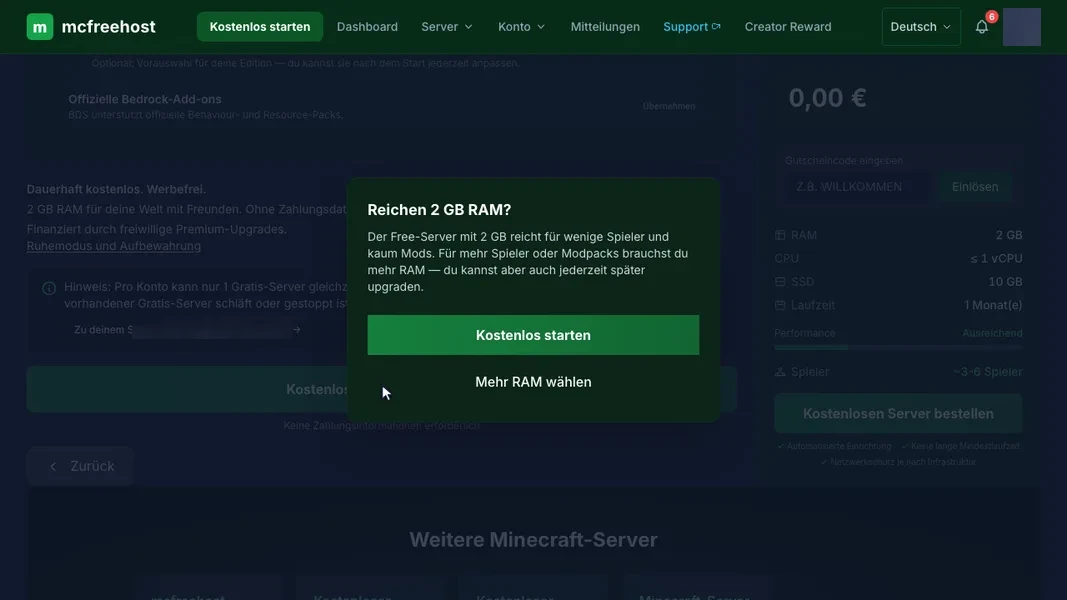
- Order for free — no payment details.
- Confirm the RAM prompt to start for free. After installation, get the address and port from the panel.
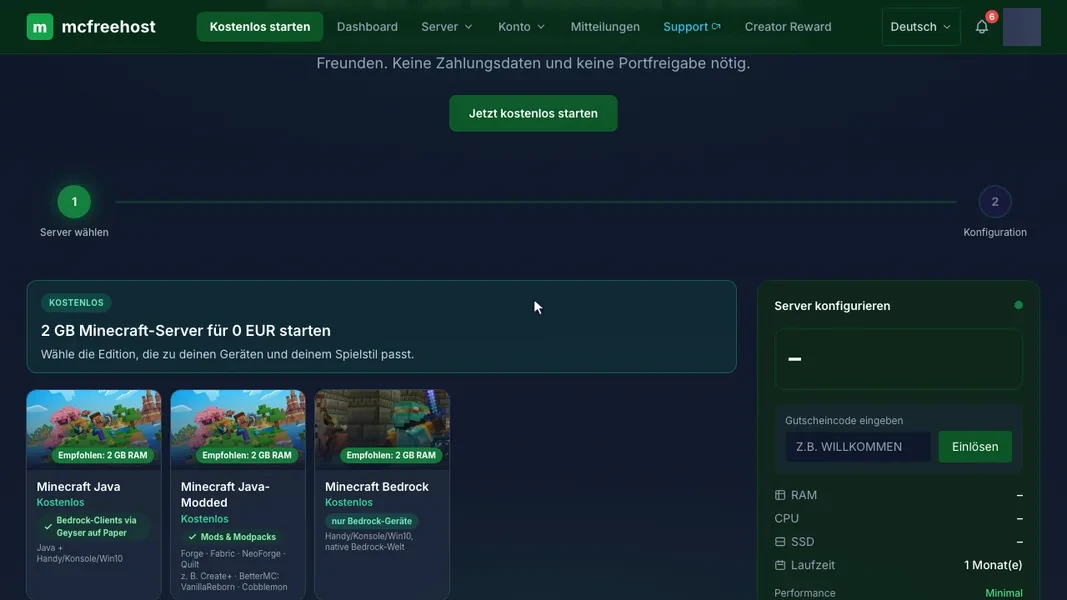
mcfreehost Bedrock Free · 2026-09-25
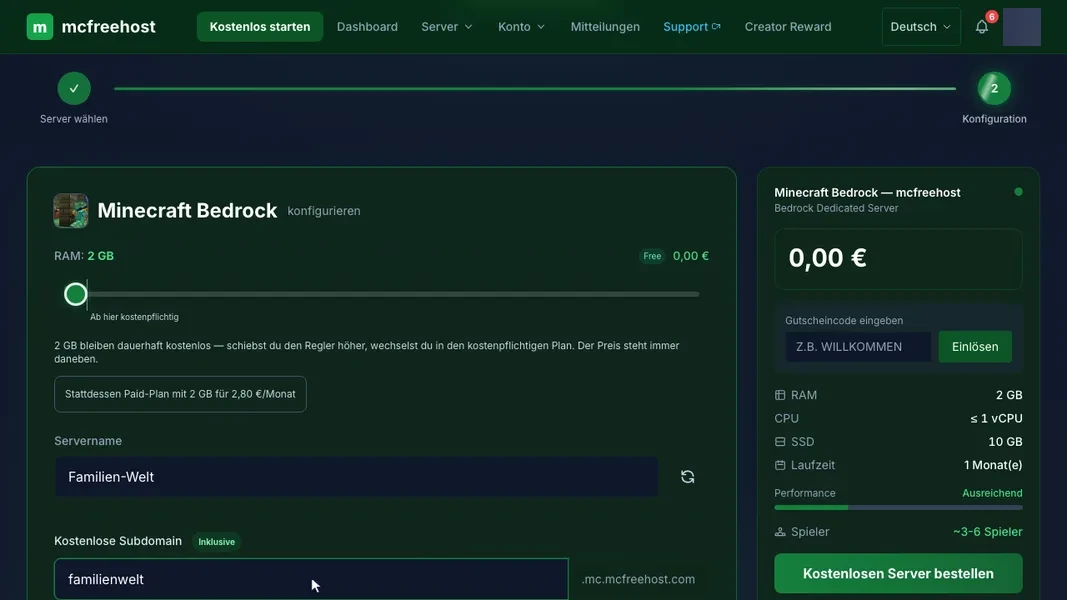
mcfreehost Bedrock Free · 2026-09-25
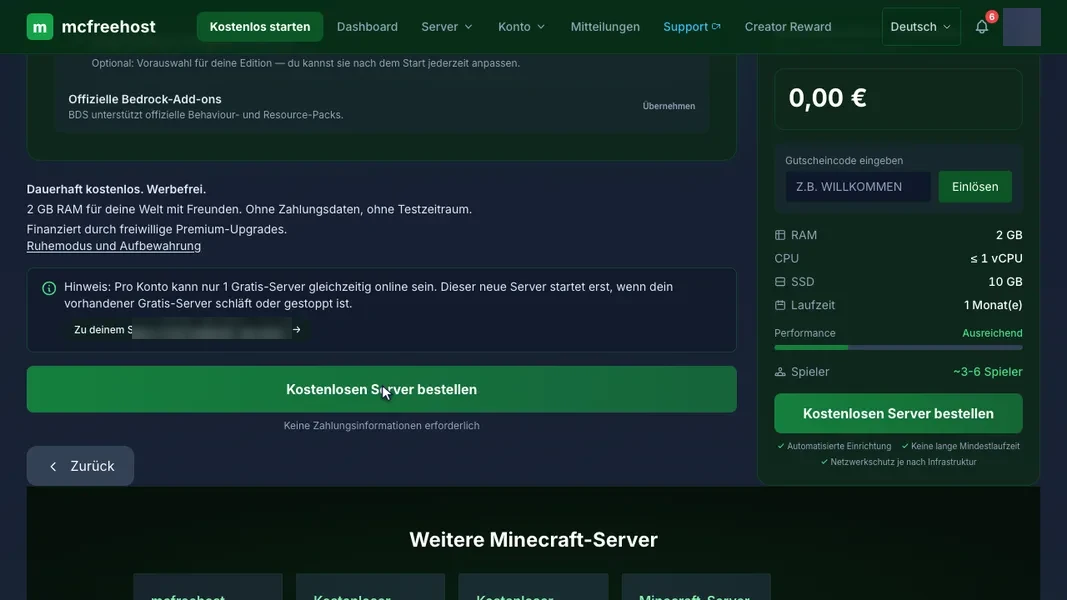
mcfreehost Bedrock Free · 2026-09-25
mcfreehost Bedrock Free · 2026-09-25