Your free mcfreehost server gets a live map, too. The panel installs BlueMap and gives the map its own link that you can send to your friends. They then see the world in 3D in the browser, even when they are not playing. The first start takes a few minutes: on our free test server, the map showed up in the panel after five to seven minutes.
How to turn on the map
- Open your panel and go to Game Settings → Live map.
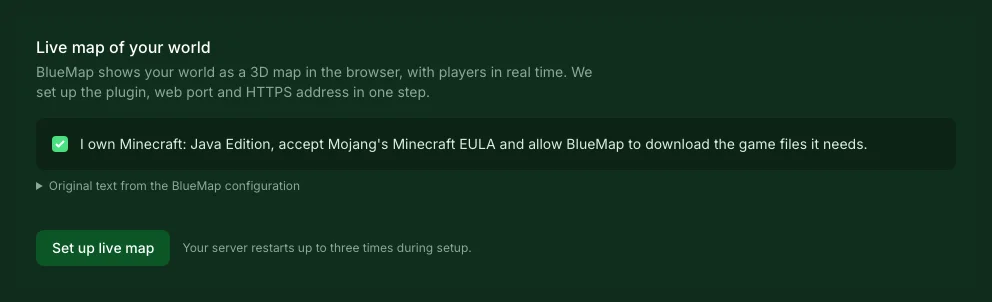
- Tick the box. This confirms that you own Minecraft: Java Edition, accept Mojang's EULA and allow BlueMap to download the game files. BlueMap needs them for the block textures.
- Click Set up live map and keep the page open.
 (Enlarge image)
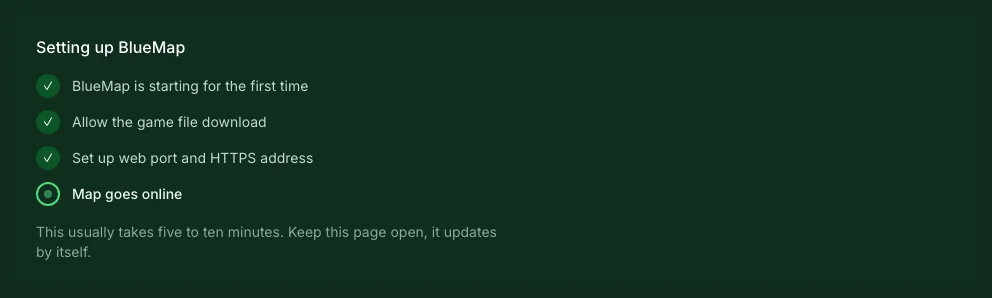
During setup your server restarts up to three times. Anyone online at the time has to rejoin briefly afterwards. It is best to turn on the map when nobody is playing. The panel ticks off the four steps one after the other.
 (Enlarge image)
Send the link to your friends
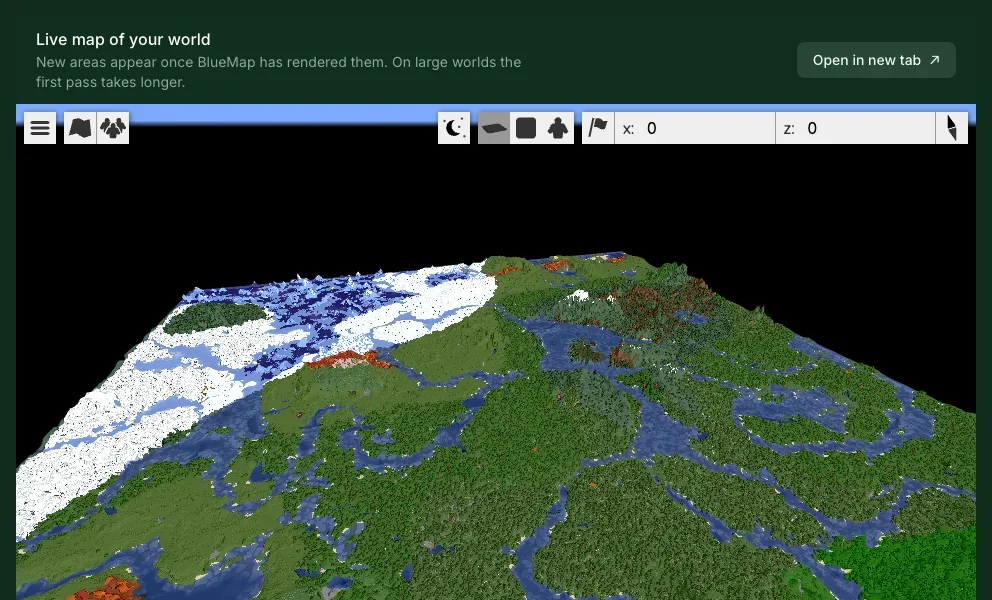
Once the map is ready, you see it in the panel and can rotate and zoom it.
 (Enlarge image)
Open in new tab gives you the link. It looks like this: https://web-<Server-ID>.mcfreehost.com/. Send it to
your group.
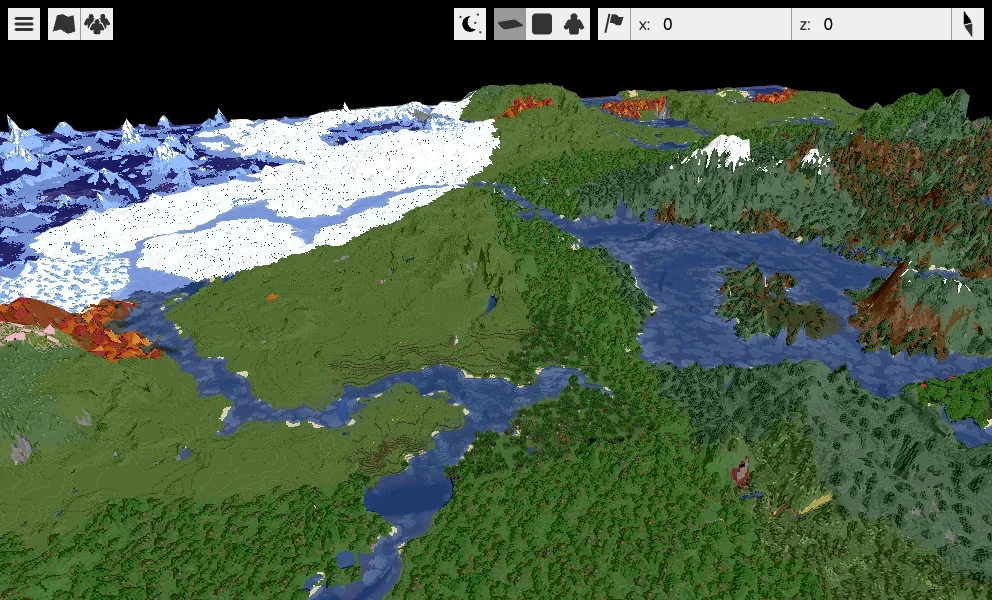 (Enlarge image)
The link works on phones, too. There, BlueMap shows a narrower bar with menu, coordinates and compass.
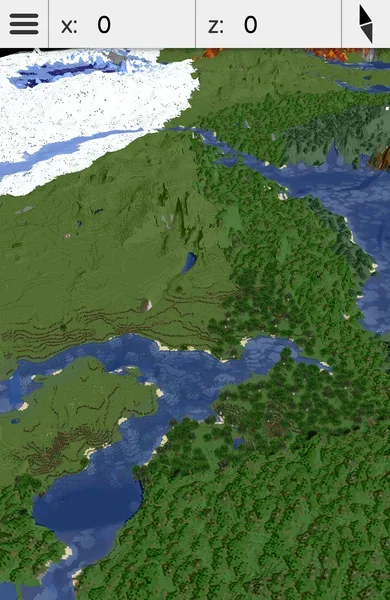 (Enlarge image)
What happens when your server is off?
BlueMap runs inside the server. When your free server is stopped, the link only shows error code: 502. As soon as
the server is running again, the map is back: on our test server that took 22 seconds after a restart, without you
having to set anything up again.
Only part of the world shows up
BlueMap renders the world piece by piece. Areas that have not been generated yet stay empty until a player has been there. If you want a larger area on the map right away, you can pre-generate the world with Chunky. BlueMap then renders the new areas by itself.
FAQ
Does the live map cost anything? No.
Can others see where I am right now? Yes, everyone with the link sees the players who are online at the moment.
The setup is stuck. Click Continue setup. If it says that another service is using the web port, remove the other map plugin first.
How do I get rid of the map? Under Plugins, choose Actions → Uninstall for BlueMap and restart. After that
the link is no longer reachable. The folders plugins/BlueMap and bluemap with the rendered map stay in place; you
can delete them under Files.
Sources and Verification
Verification: This guide reflects the state of 22 November 2026. We ran through the setup on our own free Paper test servers with Minecraft 26.3 and BlueMap 5.29, most recently on 22 November 2026: setup under Game Settings → Live map, the map in the panel and at its own link, the view on a phone, a stopped server, a restart and removal via Plugins. On 23 November 2026 we set up the map on a new free test server and then pre-generated the world with Chunky: BlueMap rendered the new areas by itself, without us having to start anything. The images come from these test servers.
- BlueMap: BlueMap installation: BlueMap
runs as a plugin inside the server, updates the map as the world changes and comes with its own small web server.
That needs an additional port and permission to download files from Mojang (
accept-download). The panel sets up both for you. - Our panel: the live map flow, steps and messages as the panel shows them.
- Not verified: whether opening the link wakes a sleeping server. We did not trigger the setup messages ourselves; they come from the panel texts.
